To enhance security, MFA will become mandatory for Canvas administrators starting July 1, 2026. On your next login you will be prompted to set up Multi-Factor Authentication.
Verify via Authenticator App
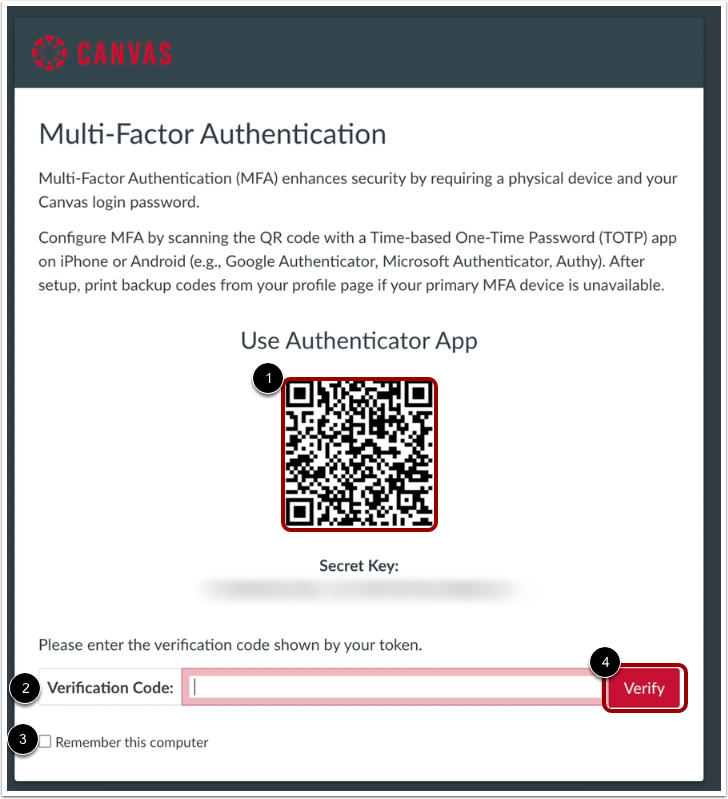
To verify multi-factor authentication a time-based one-time password (TOTP) authenticator app on iPhone or Android (ex: Cisco Duo, Google Authenticator, Microsoft Authenticator, Authy), download the app for your device.
Use the app to scan and generate the QR code [1]. Enter the code in the Verification Code field [2].
If you want multi-factor authentication to remember the computer you are using to log in to Canvas, click the Remember this computer checkbox [3].
Click the Verify button [4].
Verify via Text Message
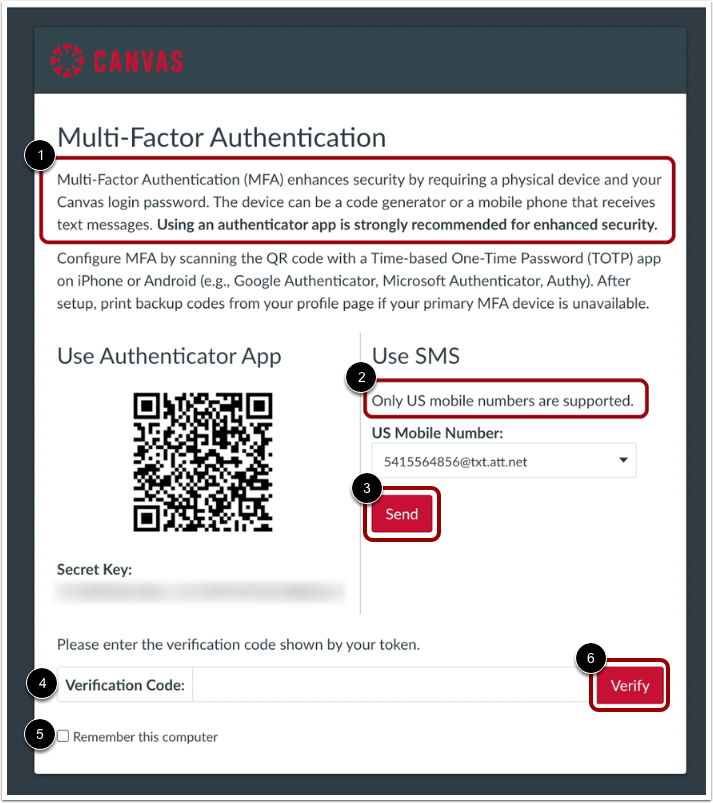
To verify multi-factor authentication via text message, enter your phone number [1] and select your carrier [2]. This is the number where your multi-factor verification code will be sent.
Once you have set up your new phone number, or selected an existing phone number, click the Send button [3]. Your mobile device will receive a verification code. Enter the code in the Verification Code field [4].
If you want multi-factor authentication to remember the computer you are using to log in to Canvas, click the Remember this computer checkbox [5].
Click the Verify button [6].
If you have any questions contact Ben Sullivan at x3140 or bsullivan@eacs.k12.in.us